Your documents stay yours
They live in storage your own company owns, under your own account. We never hold the files. Leave, and every one of them is exactly where it already was.
How it works
There is no implementation project here. You create an account, tell us about your business, drag your documents in, and connect the AI account you already use. The governance happens underneath, on every upload, forever.
Name, email, password. The usual.
Your own workspace is waiting, already set up for your industry.
Company name, address, phone, license and insurance numbers, department leads. These become the facts your assistant answers from when no document covers a question.
Drag them in. Each one is read, sorted, versioned, and checked for sensitive information before it is stored.
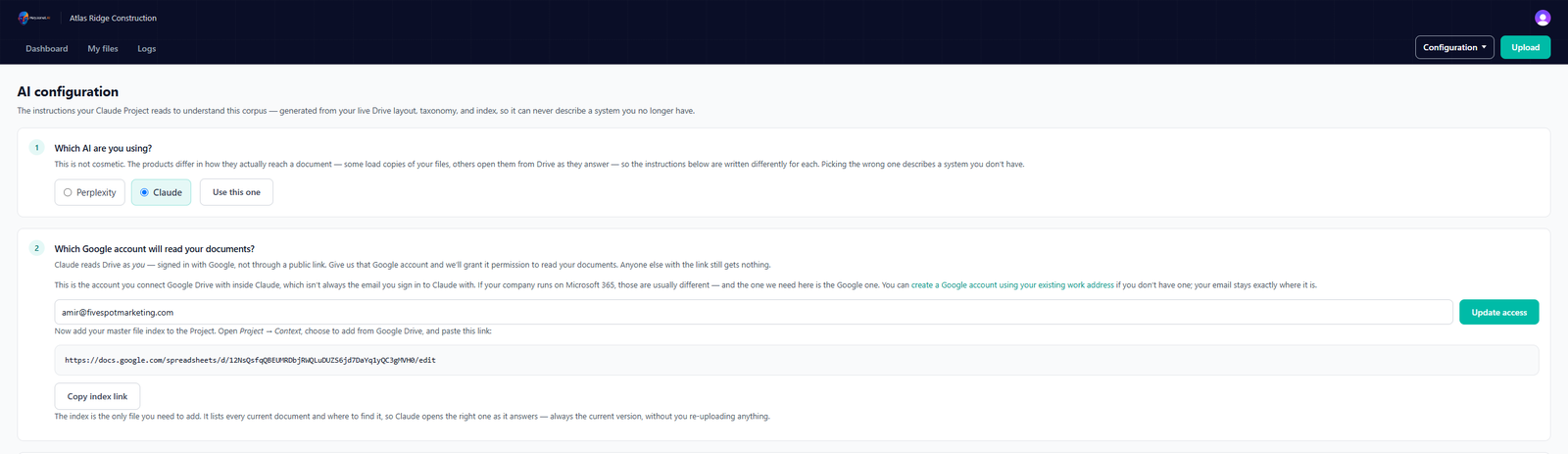
Tell us which account you use, copy one link and one block of instructions, paste them into your project. That is the whole connection.
From that moment your assistant answers from your company’s documents, and keeps up as they change.
Step 03 · Business details
Your address, hours, license and insurance numbers, and who runs each department. Fill in what you know and save — you can come back for the rest. Only the essentials hold anything up.
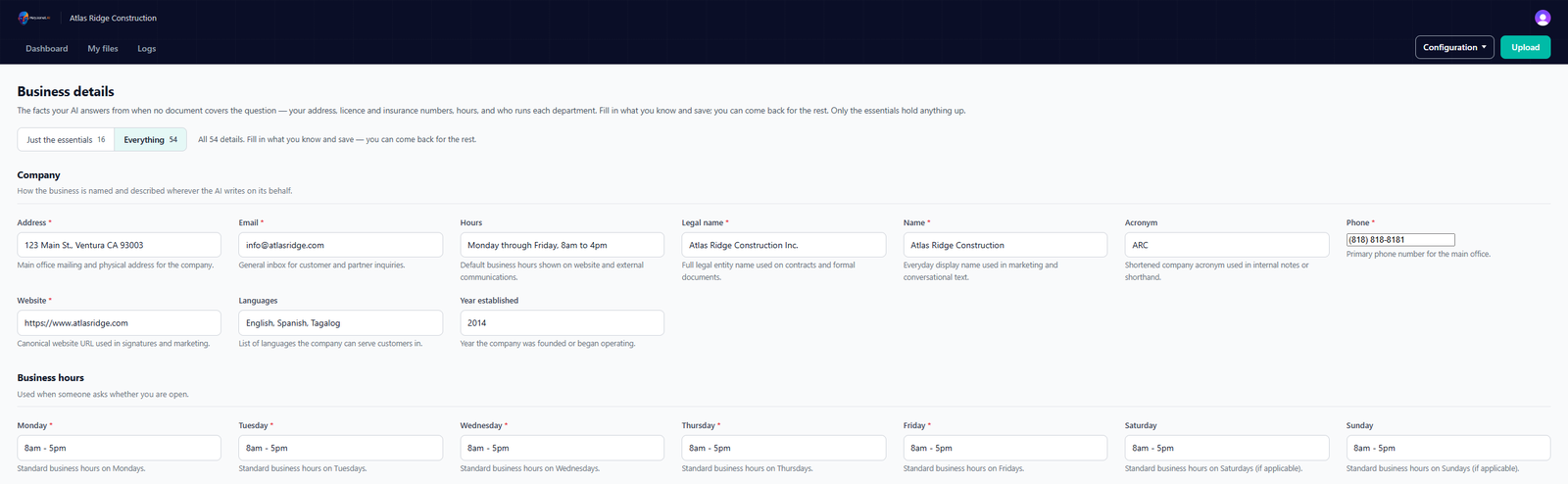
Step 04 · Upload
Pick the department and what kind of document it is — or let the system read the file and propose a filing for you to confirm. It works out the name, the version number, and which document this one replaces.
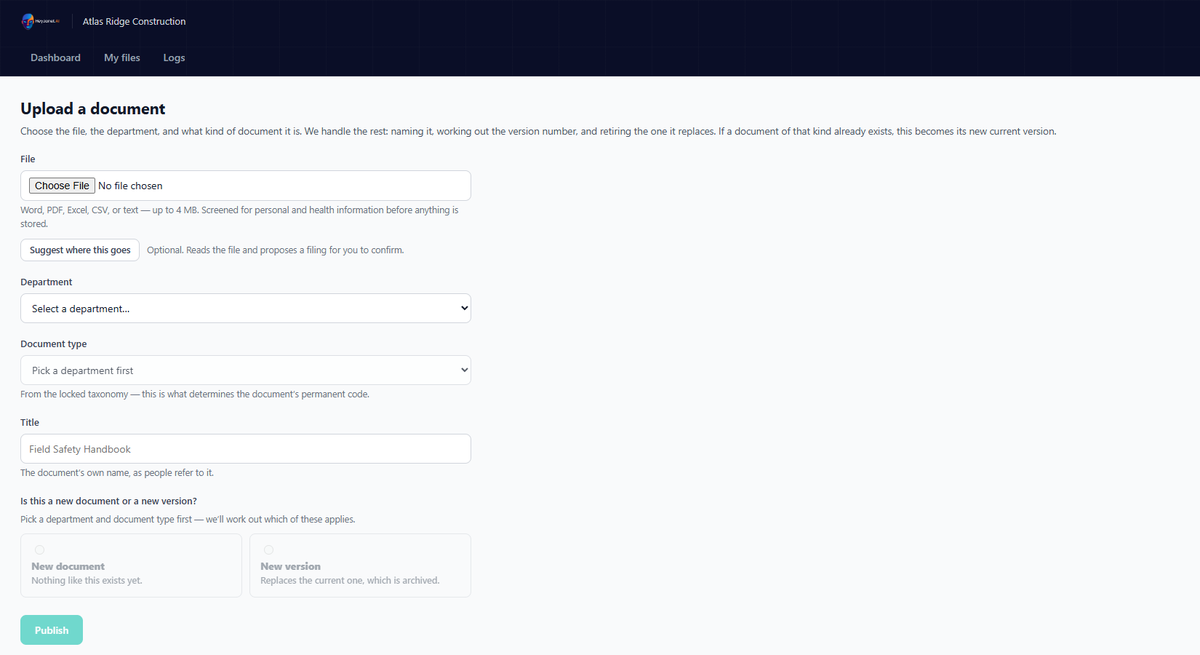
Before you publish
If a document of that kind already exists, the form tells you before you publish: this is a new version, and it will take over from the current one. Nothing is overwritten by surprise, and nothing is ever deleted.
Word, PDF, Excel, CSV or plain text. Screened for personal and health information before anything is stored.
Accepted formatsWhat happens on upload — in this order
01
The text is read out of the file you dropped in, before anything is kept.
02
Sensitive-data detection runs on that text. A file that fails is refused, not stored.
03
The department and the kind of document are worked out against your industry’s list.
04
The document gets its permanent identity, and this file gets its version number.
05
It becomes the version that counts, under a name that never changes shape.
06
The one it replaces is kept and dated, but is no longer answered from.
07
Your assistant picks it up from that moment. Nothing to re-upload, nobody to notify.
08
Who did it, when, and what it replaced — written down and never edited.
The screen
Sensitive-data detection runs on the text before anything is kept. A document carrying data we don’t accept never reaches your system, and never reaches the assistant.

Step 05 · Connect your AI
Tell us which assistant you use — Claude or ChatGPT — and which Google account will read your documents. We write the instructions for you from your live setup, so they can never describe a system you no longer have.

They live in storage your own company owns, under your own account. We never hold the files. Leave, and every one of them is exactly where it already was.
Your project gets one thing to point at, and that one thing always knows which version of each document is current. That is why nothing has to be re-uploaded.
Answer in English and Spanish. Never quote pricing outside the company. Always name the document. Your instructions survive every regeneration.
Day to day
No retraining. No rebuilding. No announcement to the team. Because your project reads what is live rather than copies of your files, the answer changes the moment the document does — in the same thread, on the same question.
Step 01
The same document you already keep — a price list, a warranty, a field manual.
Step 02
What you just uploaded becomes the version that counts. The one before it is kept and dated, but no longer answered from.
Step 03
From that moment every answer uses the new one. Ask the same question again and watch it change.

Nothing is deleted
Every version you have ever published is still there, dated, with a record of who replaced what and when. When a dispute lands, you can show exactly what you sent in March — and prove it wasn’t what you send today.
The guardrails
Governance that depends on a model behaving well is not governance. Most of this is structural — the superseded file is not somewhere the assistant can reach, whatever it decides to do.
Once a document has been replaced, it stops being something your assistant can answer from. Being able to open an old file is never evidence that it is current.
Where your documents and your business details do not give a clear, authoritative answer on policy, legal, compliance or safety, it says what is and is not covered rather than filling the gap.
[Company Name], [Project Name] and sample names in templates are filled from your recorded business details, never answered as if they were real data.
The instructions your assistant reads are rewritten from your live setup every time it changes. They cannot describe a department list you no longer have.
It also catches what a proofreader misses. In testing it flagged a dead web address in a client’s own marketing document, and traced it back through two revisions.
Before you start
Company name and legal name, address, phone, hours, license and insurance numbers, and the person who runs each department.
Word, PDF, Excel, CSV or plain text — filed against 654 document types across 69 departments. Whatever you already keep.
The account your assistant will sign in with. If your company runs on Microsoft 365, a Google account on your existing work address is enough — your email stays exactly where it is.
On one AI system
They just ask questions — and the answer comes from the document that is current today.